3 shared countdown apps for couples: what stays in sync?
A countdown image can make a trip feel closer. But if the trip moves by a day, will the number on your partner’s phone change too? Before choosing a shared countdown app, separate sharing an event from sharing a picture of it.


In this guide
Consider Closer for a reunion date inside a linked couple app. Event Countdown documents an owner-and-follower model: invite someone to follow an event, and date changes update their copy. Days offers in-app event sharing as well as image sharing; verify the current editing and update behavior before relying on it. None of these options should be treated as a guarantee of instant widget refreshes.
At a glance.
Choose the sharing model before choosing the widget.
Swipe to compare all columns
| App | Sharing model | What to verify |
|---|---|---|
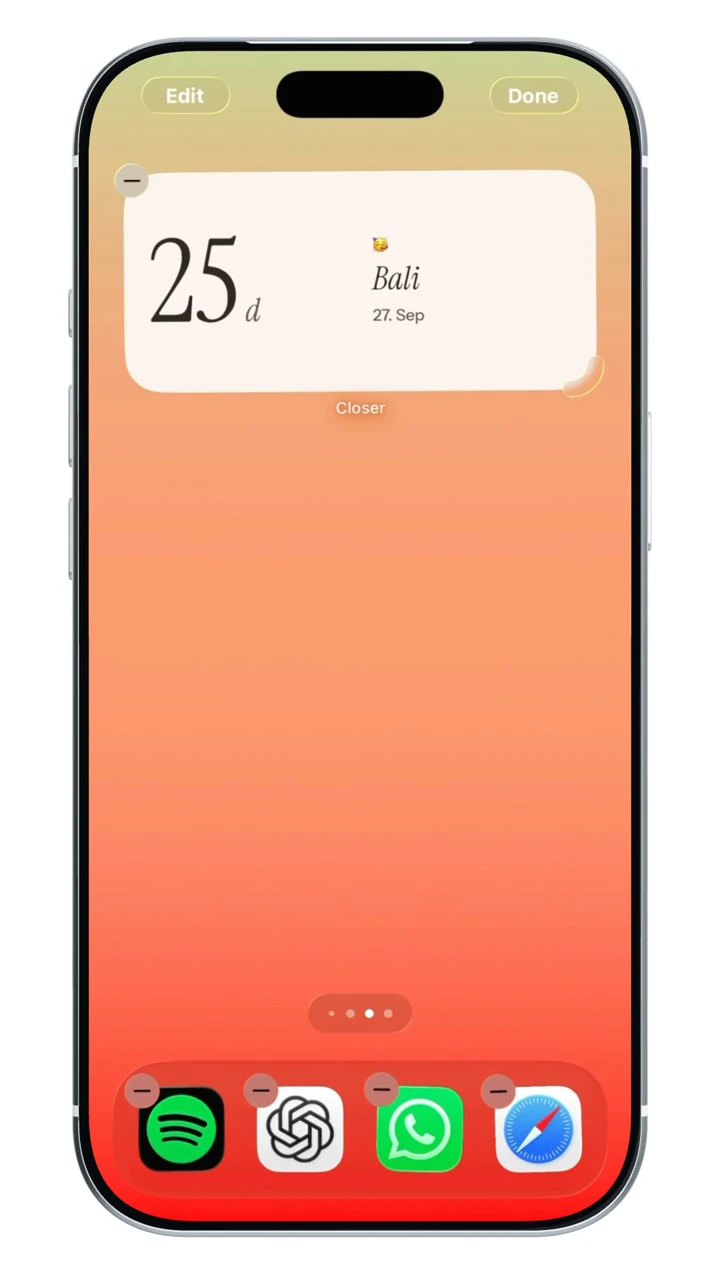
| Closer | One visit shared with a linked partner | Home Screen widgets are free with five partner-facing updates per person per UTC day. Pro adds unlimited updates, Lock Screen widgets and optional 30-day history. One active Pro purchase covers both linked partners. |
| Event Countdown | Invite followers to an event you manage | Followers cannot edit the owner’s event. The Next Event Home Screen widget is free; other widget formats are Premium. |
| Days | A personal countdown to invite someone into | Verify the current invitation behavior and purchase options. The official sharing help does not establish co-editing or every update-propagation rule. |
The shortlist.
Start with the routine you want to share.
Closer
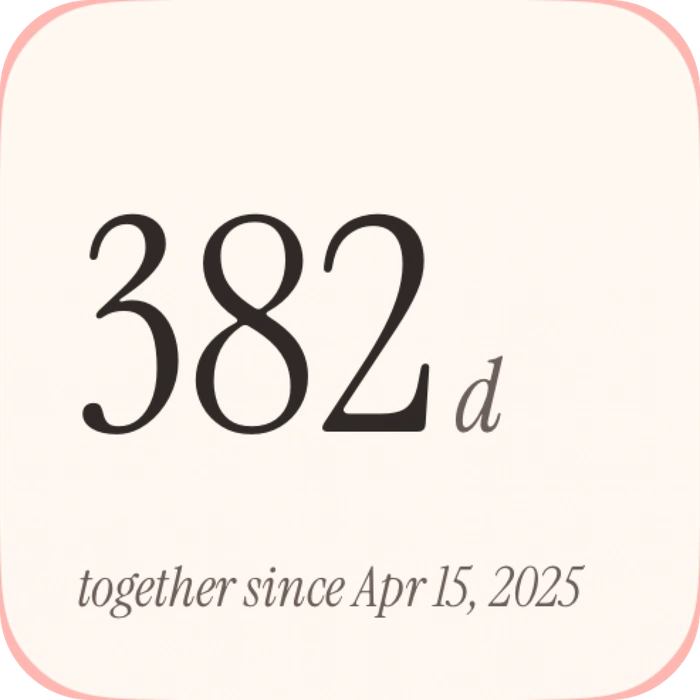
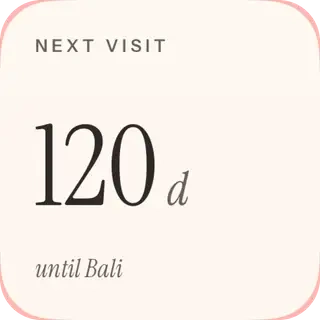
One visit shared with a linked partnerCloser suits a couple who want the next reunion alongside their ordinary check-ins. The visit has a title, place and target date shared between the paired accounts. Its countdown is separate from the anniversary counter that measures days already spent together, so you can keep both parts of your story in view.
Before choosing: Both people need supported iPhones and must be paired. Home Screen widget types are free; Lock Screen formats require Pro. Keep time-sensitive travel information in your booking or calendar too.
View Closer on the App StoreEvent Countdown
Invite followers to an event you manageEvent Countdown is worth considering when one person organizes the date and others need to follow it. Its official sharing guide says an invitation adds the countdown to the recipient’s app, and later date changes update that copy. This is a specific sharing arrangement, rather than a promise that everyone becomes a co-editor.
Before choosing: Followers cannot edit the owner’s event. Check the exact widget and purchase tier you need: the Next Event Home Screen widget is free, while the wider collection is Premium.
View Event Countdown on the App StoreDays
A personal countdown to invite someone intoDays is an option if you like a photo-led countdown and want to share an event with another Days user. The developer describes an invitation route as well as a separate option for sending an image. Choose the route that matches your purpose instead of assuming a picture in a chat is a connected event.
Before choosing: The official sharing help does not establish co-editing permissions or how every later change propagates. Test those points in the current app, along with the widget and Pro options you want.
View Days on the App StoreFour different things “shared” can mean
Ask what should happen after you send the invitation. If both people only need a reminder of a fixed date, a saved image may be enough. If the plan is likely to change, choose a model that can keep the event details connected.
- A shared picture or video is a snapshot. It does not become a living countdown inside the recipient’s app just because it was sent through Messages.
- An imported copy can create an event on another phone without establishing that later edits stay connected.
- An owner-and-follower invitation lets one person manage an event while others receive updates, as Event Countdown documents.
- Co-editing means more than following. Verify who can change the date, and what each person sees afterward.
Test one change before relying on it
Make a disposable test event before setting up a flight, reunion or wedding countdown. The result matters more than a familiar-looking share icon.
- Create a test date and send the intended in-app invitation.
- Have your partner accept it using their own account and phone.
- Change the date or title on the organizing phone.
- Check the receiving app first, then its widget. Those are separate update steps.
- Confirm who can edit or leave the shared event, then remove the test.
Agree on the date, place and time zone
For a visit, decide what the countdown should end at: departure, arrival or the moment you expect to meet. Those can fall on different calendar dates when you cross time zones. Put the relevant place in the event name or details so the number has a clear meaning.
If two displays disagree, compare the event details and time-zone assumptions before creating duplicate countdowns. Widget timing is also different from event synchronization: an app can have the right date while its Home Screen display is still waiting for an update.
Check the exact free or paid feature
A free download does not answer whether a particular widget, invitation feature or reminder is free. Look for the feature you actually want on the current purchase screen, and check it on both phones if both people need access.
Closer includes its Home Screen widget types with a daily sending allowance; Pro adds Lock Screen formats. Event Countdown distinguishes its free Next Event widget from the Premium collection. For Days, verify the current widget and Pro choices rather than assuming every style in a promotional image is included.
A countdown does not replace your shared plans
A countdown is useful for the one date you want to notice often. A shared calendar is more useful for a trip with several bookings, appointments and changing arrival times. It is reasonable to keep the detailed schedule in a calendar and use a countdown as the small reminder of what you are looking forward to.
A few more questions.
Can both partners edit a shared countdown?
That depends on the app and invitation model. Event Countdown explicitly describes followers who receive changes but cannot edit the owner’s event. Days’ sharing help does not establish co-editing. Verify editing permissions instead of assuming that any shared event allows both people to make changes.
Is sending a countdown link the same as sending an image?
No. An invitation link can connect another app installation to an event, according to the provider’s design. An exported image or video captures a moment. If the date changes, send an updated image or use an event-sharing feature that supports updates.
Can we share a countdown between iPhone and Android?
Closer is for supported iPhones. Event Countdown offers iPhone and Android versions, but verify the invitation and widget experience for your exact devices. This guide does not establish Android compatibility for Days or identical features across every platform.
Sources & app credits.
Official resources checked for this guide. App names and icons belong to their respective owners; their inclusion does not imply endorsement of Closer.
- Closer: official App Store listing
- Event Countdown: official App Store listing
- Days: official App Store listing
- Event Countdown: sharing invites, followers and videos
- Event Countdown: widget types and Premium boundary
- Days: share an event or an image
- Days official product site
- Closer anniversary and visit countdown guide