How to add couple widgets on your iPhone
A couple widget is added through the same iPhone widget gallery as other widgets. The extra step is connecting the app to your partner first, so the widget has something meaningful to display.
In this guide
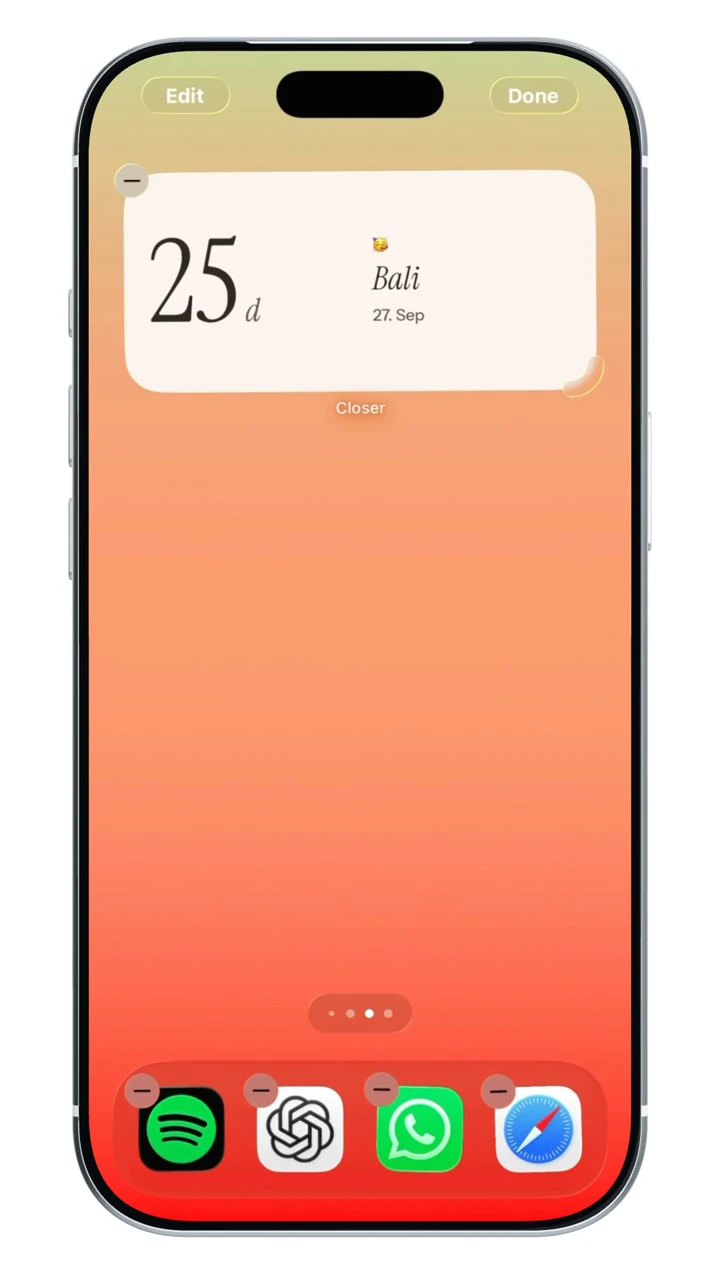
Install the app, open it and finish pairing. Then touch and hold an empty area of your Home Screen, choose Edit and Add Widget, search for the app, select a supported size and add it. Menu labels can vary with your iOS version.
Before adding the widget
Both partners should install the intended app from its official listing and open it at least once. Complete the app’s account and pairing steps before trying to display a partner update.
In Closer, connect using a pairing code. You can begin without Sign in with Apple, but linking Apple helps with account recovery. Your partner needs their own installation and the paired connection.
Check that your iPhone and iOS version meet the app’s requirements. Closer requires iOS 17 or later; another app may have a different minimum.
Add a Home Screen couple widget
Apple’s widget gallery lets you choose from the sizes the app provides. The steps below describe the current gallery flow; older iOS versions may show a plus button instead of the same Edit menu.
- Touch and hold an empty area of the Home Screen until the icons begin to move.
- Tap Edit, then Add Widget.
- Search for your couple app and open its widget choices.
- Swipe through the available sizes and choose Add Widget.
- Move it into place and finish editing the Home Screen.
Choose the content you want to see
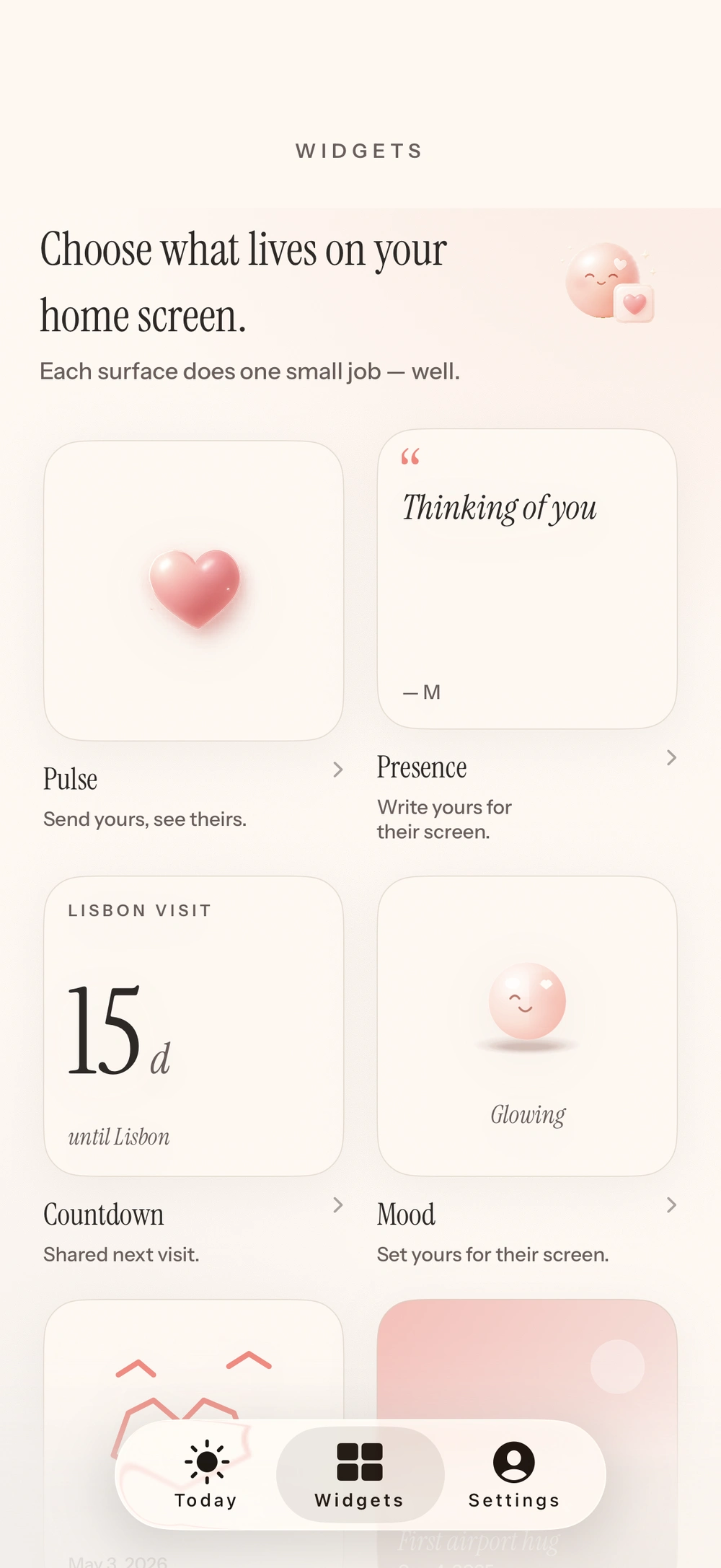
Some apps provide several widget types or configuration choices. Touch and hold the added widget and look for Edit Widget when that app supports it. Choose the partner, content or style according to the app’s available options.
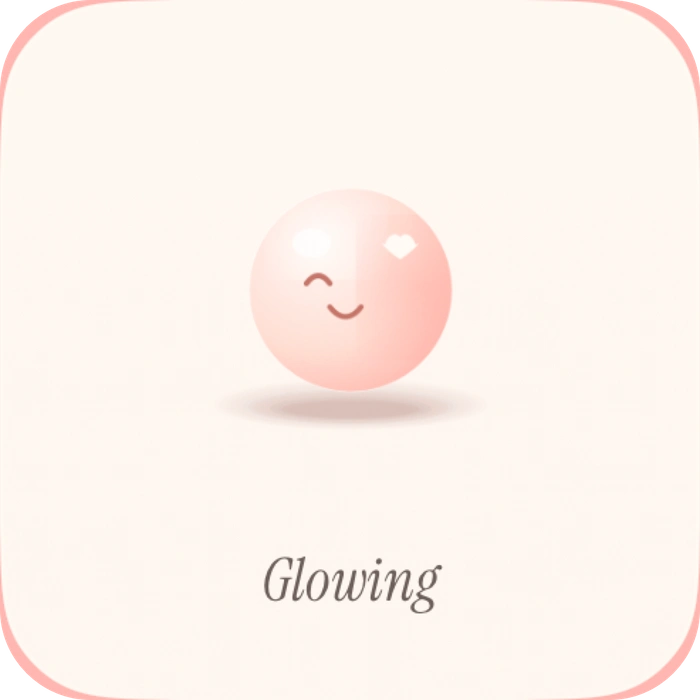
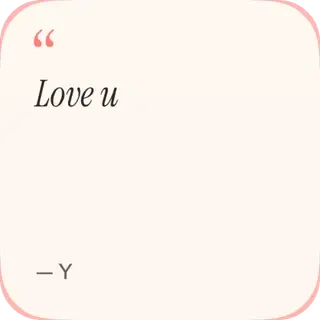
In Closer, start with something easy to recognize, such as Mood or a drawn Love Note. Send an update in the app and check the other phone. Refresh timing is controlled partly by iOS, so give it time rather than treating an immediate delay as a failed pairing.
Add a Lock Screen widget
Home Screen widgets and Lock Screen widgets are different formats. An app can support one without providing every format on the other. In Closer, Lock Screen widgets are part of Pro.
- Unlock the iPhone, then touch and hold the Lock Screen to open its wallpaper choices.
- Choose Customize and the Lock Screen you want to edit.
- Tap the widget area and choose a compatible widget from the app.
- Remove another widget if you need space, then finish customizing.
If the app is missing from the gallery
First open the app and finish its setup. Check for an app update and confirm that the particular widget exists for your iOS version and the surface you are editing. A Home Screen gallery and a Lock Screen gallery do not necessarily show the same choices.
If the widget appears but contains old content, use our separate update checklist. That is a different problem from an app that never appears in the gallery. Do not delete a recoverable account or reinstall an app just to look for a missing widget without reviewing its recovery instructions.
Keep the widget visible, or put it in a stack
If you want a partner update to stay visible, start with a widget on its own. Apple also lets you stack widgets in the same space. Smart Rotate can change which one is shown, so a widget inside a stack may still be installed even when another is on top.
For a couple widget that seems to disappear, check the stack before reinstalling anything. Apple’s Edit Stack menu lets you reorder it and change Smart Rotate.
Finish setup on both phones
Pairing connects the accounts; widget placement remains a separate choice on each iPhone. You can use different layouts and sizes as long as the app offers those widgets.
- Open the app on both devices and confirm the intended pairing.
- Send one recognizable update and check it inside the receiving app.
- Add a supported widget on that phone, with enough space to read the chosen content.
- If the app has the new content but the widget is behind, follow the update checklist rather than repeating the whole pairing process.
A few more questions.
Do both partners need to add a widget?
Each person adds widgets to their own iPhone. Pairing the app connects the accounts; it does not automatically rearrange the other person’s Home Screen.
Why can I add a Home Screen widget but not a Lock Screen widget?
Those are separate widget formats. The app, iOS version and purchase tier must support the format you want. Closer includes Home Screen widget types free and offers Lock Screen widgets through Pro.
Does removing a widget unpair me from my partner?
Removing a widget changes the Home Screen layout. It is different from deleting the app, deleting an account or unpairing inside Closer. Keep the app and your account in place if you only want to rearrange your screen.
Sources & app credits.
Official resources checked for this guide. App names and icons belong to their respective owners; their inclusion does not imply endorsement of Closer.